It is highly, highly recommended that you only do any script editing in Edit Mode within the Goldblox Studio. You are much more easily able to modify your place and scripts when you player isn't present, your camera isn't fixed on an object.
Introduction
The GOLDBLOX scripting language is Lua 5.1, a concise and efficient scripting language used in games and embedded systems. Documentation on the language can be found at http://www.lua.org/docs.html.
With scripts you can inspect and control the behavior of nearly anything in GOLDBLOX.
The usual way to write scripts in GOLDBLOX is to create a Script object. Intro to Scripting: Make a Dance Floor is a simple tutorial that teaches you how to create a Script object. To see the Methods, Properties and Events that are currently available for scripting, open Roblox Studio and click the Class Explorer item under the Help menu.
Fundamentals
Defining Scripts
Scripts are usually defined in a Script object. Script objects are saved within Models and Places. They can be part of a GOLDBLOX game. Follow the instructions in Intro to Scripting: Make a Dance Floor to learn how to create a Script object.
Scripts can also be written and executed in the Command toolbar. To execute a script from the command bar:
- Edit a place in GOLDBLOX Studio.
- Select View-->Toolbars-->Command from the menu bar.
- The Command toolbar appears at the bottom of the screen.
- Select View-->Output from the menu bar.
- The Output panel appears just above the Command toolbar.
- In the Command toolbar's textbox type the following:
print("hello world")
- Press enter
- The text "hello world" appears in the output window.
Script Execution
Script objects only run under certain conditions:
- Scripts entered in the Command toolbar execute when you press Enter.
- Scripts contained anywhere underneath the Workspace start executing when the Place is running. In multiplayer games scripts underneath the Workspace only run on the server.
- TBD: Scripts inside a Tool run when the Tool is activated.
Environments and Libraries
Each Script object has its own copy of the global Environment. This "sandboxes" each script: A script cannot overwrite the global data defined in another script.
GOLDBLOX loads the following Lua standard libraries: Basic Functions, Coroutine Manipulation, String Manipulation, Table Manipulation, Mathematical Functions. For security purposes some functions have been removed to deny access to system resources. A list of these functions can be found in the Function Dump page of the wiki.
Data Model
Basic Types
GOLDBLOX scripts use the basic Lua types nil, boolean, number, string, function, userdata, thread, and table. In addition, there are the following additional basic types:
Vector3
Represents a 3D vector. All properties are read-only.
| Property | Type | Description
|
x | number | the x-coordinate
|
y | number | the y-coordinate
|
z | number | the z-coordinate
|
unit | Vector3 | a normalized copy of the vector
|
magnitude | number | the length of the vector
|
| Member Function | Description
|
Vector3 lerp(Vector3 goal, number alpha) | returns a Vector3 lerped between this Vector3 and the goal. alpha should be between 0 and 1
|
CFrame
A coordinate frame
| Constructor | Description
|
new() | Creates an identity CFrame
|
new(v) | Creates CFrame from offset Vector3 v
|
new(v, l) | Creates CFrame from offset Vector3 v looking at point l
|
new(x, y, z) | Creates CFrame from offset (x, y, z)
|
new(x, y, z, qx, qy, qz, qw) | Creates CFrame from offset (x, y, z) and quaternion (qx, qy, qz, qw)
|
new(x, y, z, c00, c01, c02, c10, c11, c12, c20, c21, c22) | Creates CFrame from offset (x, y, z) and rotation matrix (c00, c01, c02, c10, c11, c12, c20, c21, c22)
|
fromEulerAnglesXYZ(x, y, z) | Creates a rotated CFrame
|
fromAxisAngle(v, r) | Creates a rotated CFrame from a unit vector and a rotation in radians
|
| Property | Type | Description
|
p | Vector3 | the translation
|
x | number | the x-component of translation
|
y | number | the y-component of translation
|
z | number | the z-component of translation
|
lookVector | Vector3 | a vector along the negative-z axis
|
| Member Function | Description
|
CFrame inverse() | returns the inverse of this CFrame
|
CFrame toWorldSpace(CFrame) | returns a CFrame transformed from Object to World coordinates. Also works with tuples
|
CFrame toObjectSpace(CFrame) | returns a CFrame transformed from World to Object coordinates. Also works with tuples
|
Vector3 pointToWorldSpace(Vector3) | returns a Vector3 transformed from Object to World coordinates. Also works with tuples
|
Vector3 pointToObjectSpace(Vector3) | returns a Vector3 transformed from World to Object coordinates. Also works with tuples
|
Vector3 vectorToWorldSpace(Vector3) | returns a Vector3 rotated from Object to World coordinates. Also works with tuples
|
Vector3 vectorToObjectSpace(Vector3) | returns a Vector3 rotated from World to Object coordinates. Also works with tuples
|
| Operator | Description
|
CFrame * CFrame | returns composition of two CFrames
|
CFrame * Vector3 | returns Vector3 transformed from Object to World coordinates
|
CFrame + Vector3 | returns CFrame translated by Vector3
|
CFrame - Vector3 | returns CFrame translated by -Vector3
|
Color3
BrickColor
| Function | Type | Description
|
new | BrickColor | returns a BrickColor (from a number, string, Color3 or r-g-b values)
|
Random | BrickColor | returns a random BrickColor
|
White | BrickColor | returns White
|
Gray | BrickColor | returns Gray
|
DarkGray | BrickColor | returns Dark Gray
|
Black | BrickColor | returns Black
|
Red | BrickColor | returns Red
|
Yellow | BrickColor | returns Yellow
|
Green | BrickColor | returns Green
|
Blue | BrickColor | returns Blue
|
| Property | Type | Description
|
Number | number | The unique number that identifies the BrickColor
|
Name | string | the name associated with the BrickColor
|
Color | Color3 | the Color3 associated with the BrickColor
|
r | number | the red component (between 0 and 1)
|
g | number | the green component (between 0 and 1)
|
b | number | the blue component (between 0 and 1)
|
Example:
local b = BrickColor.Yellow()

print(b.r)
prints: 0.96078437566757
BrickColor Codes
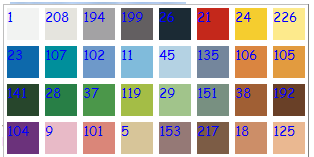
Example:
-- Set myPart color to red.
myPart.BrickColor = BrickColor.new(21)

-- Note that this is equivalent to:
myPart.Color = Color.new(1,0,0)
Connection
Represents a connection to an Event
-
In addition to loading several Standard Libraries GOLDBLOX defines the following global variables:
-
game is the DataModel object that is the root of the tree for a Place.
-
workspace is the Workspace object that is a child of the DataModel.
-
script is the Script object that defines the script. (not applicable for the Command toolbar)
-
shared is a utility Lua table that is accessible to all scripts. It is a way of sharing data between scripts. Note that this table is not replicated in a multiplayer environment, nor is it streamed when the Place is archived. Use with care.
-
print() echoes each argument to the Output panel.
-
tick() returns a number that is the system time in milliseconds.
-
wait() yields the current thread for a short period of time. Generally it will wait for about 1/30 of a second, but there are no guarantees. This is equivalent to game:service("RunService").Heartbeat:wait().
Roblox Objects
Each object in the GOLDBLOX Studio Explorer is accessible with scripting. GOLDBLOX Objects have Properties, Functions and Events. You can browse the member definitions by clicking “Class Explorer…” under the Help menu.
Properties
Object properties are accessed with the “dot” notation:
script.Name = "Hello"

print(script.Name)
Some properties are read-only. Attempting to assign to a read-only property will throw an [1].
Functions
Member functions are called using the "colon" operator:
copy = script:clone()

print(copy.Name)
Functions in Lua are first-class objects. Therefore you can reference a member function as follows:
f = script.clone

copy = f(script)

print(copy.Name)
Note: If you are used to other scripting languages you will need remember to use : instead of . when invoking a member function. script.clone() will not behave as you might expect.
Wait
Wait yields the script until an action is performed. For example wait(Jump) waits until jump happens. Wait also waits for a amount of time as mentioned in the (). So, Wait(9) waits 9 seconds.
Events
Events are fired by Objects. Scripts define code to be executed when an event is fired. Events can optionally send one or more arguments when fired.
There are two ways to handle an Event:
- When a script calls
wait(), the currently executing thread yields until the Event is fired. The return values from wait() are the Event arguments.
- A script calls
connect() passing in a function that the Event will call each time the Event is fired. connect() immediately returns a Connection object that can be used to disconnect the listener function.
Here is some sample code:
-- Get the Script's Parent object
part = script.Parent

-- Define a handler for the "Touched" Event
function onTouched(otherPart)
print(otherPart.Name .. " touched me!")
end

-- Listen for each time that "part" is touched
connection = part.Touched:connect(onTouched)

-- Put this thread to sleep until a property changes
propName = part.Changed:wait()
print("Property changed: " .. propName)
-- Stop listening to the Touched event
connection:disconnect()
This code listens for two events: The Part being touched and also for a Changed event. Since we connected to the Touched event, the function onTouched() will be called each time Part is touched. However, once the Changed Event fires and the wait()
call returns, we won't listen for another Changed event. At that point we also disconnect from the Touched event.
You are not strictly required to disconnect every connection you make. If the Object owning the Event is collected, then the listening script will no longer get events. Similarly, if the Script Object that owns the listener is removed, then the connection is automatically broken, and any waiting threads can be collected.
